Circle the good part: highlight a message in a screenshot
Sometimes one sentence is the whole reason you took the screenshot. A hand-drawn circle points people toward it while leaving the original message intact. Use Circle it, Highlight or Arrow to mark the part that matters. The tool draws on top of the image; it never reads, extracts or rewrites the words underneath.
Try this style →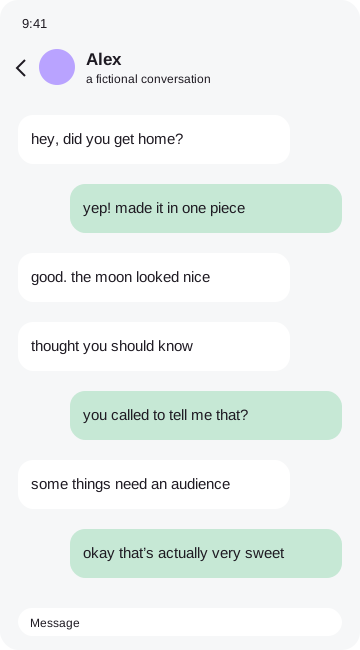 plot twist
How to make it
- Import a screenshot and open Draw.
- Choose Circle it and a marker color.
- Drag from one corner of the message to the opposite corner.
- Use Undo or select the circle to move and resize it.
Choose a mark that helps people read
Leave a little breathing space between the circle and the message. A red outline draws attention without filling the bubble. Highlight works best as a thin, translucent stripe, while an arrow helps when the detail sits near an edge. Use one main mark rather than circling everything. If you need privacy, choose Hide instead: a highlight is decoration and will not safely conceal text.
Your original image remains in browser memory while you work. Frames, stickers and marks become part of a flattened export, so the result is ready to save or share. You can remove the tiny credit sticker in the Export tab with one tap. No account, payment or tracking is required. Before sending a personal conversation to someone else, check every corner of the exported file and make sure you have permission to share it.
Good questions
Does highlighting hide private information?+
No. Use the opaque Hide tool to conceal names, numbers or sensitive text.
Is my screenshot uploaded?+
No. Image processing and exports happen entirely in your browser.
Can I remove the credit?+
Yes. Switch off the credit sticker in Export.
Can I hide private details?+
Yes. Drag an opaque Hide cover over each detail, then check your exported file.