Make your iMessage screenshots cute
A sweet message does not need a new font to feel special. Keep the original iMessage bubbles and add a paper frame, a small heart or a handwritten caption around them. The Love preset starts with warm pinks and a Polaroid look, ready for a text you want to remember. Your screenshot stays on your iPhone throughout editing.
Try this style →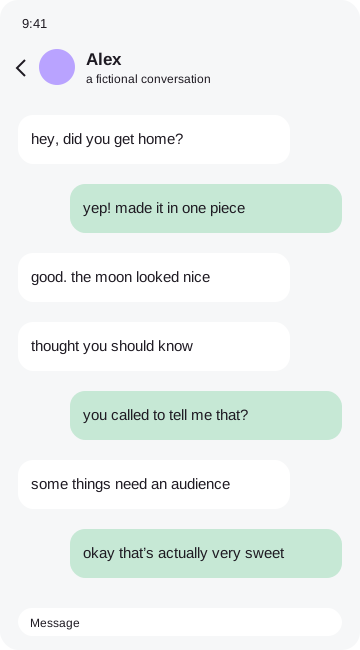 the moment i knew
How to make it
- On Face ID iPhones, press the side and volume-up buttons together.
- On supported Home button iPhones, press Home and the side button.
- Crop the screenshot to the few messages you want to keep.
- Open the Love preset, decorate and save.
Give the conversation room to breathe
A screenshot with three or four messages is often easier to frame than a whole screen of text. Keep enough context that the reply makes sense. Leave the original bubbles visible, and put hearts near the paper edges rather than over words. For an anniversary gift, use a short caption below the screenshot and choose a print-ready export.
Your original image remains in browser memory while you work. Frames, stickers and marks become part of a flattened export, so the result is ready to save or share. You can remove the tiny credit sticker in the Export tab with one tap. No account, payment or tracking is required. Before sending a personal conversation to someone else, check every corner of the exported file and make sure you have permission to share it.
Good questions
Can I use it on an iPhone?+
Yes. Pick a screenshot from your photos in a modern browser.
Is my screenshot uploaded?+
No. Image processing and exports happen entirely in your browser.
Can I remove the credit?+
Yes. Switch off the credit sticker in Export.
Can I hide private details?+
Yes. Drag an opaque Hide cover over each detail, then check your exported file.