How to screenshot a WhatsApp chat on iPhone and Android
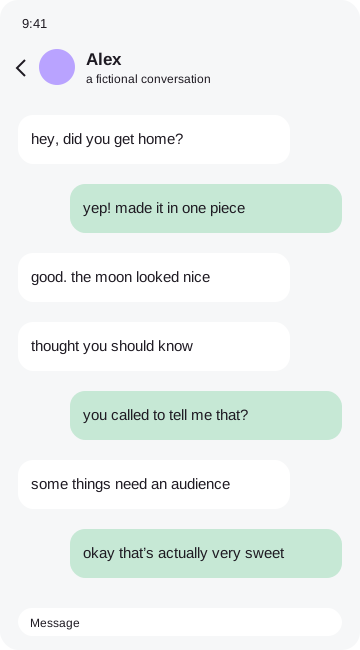 this is us
1. Choose the moment first
Open the conversation and scroll until the messages you want to keep are visible. Close the keyboard so it does not take up half the image. If the exchange is long, choose a short section that still makes sense on its own. Read the header and nearby messages: a screenshot can accidentally include a phone number, a private reply or a notification you did not mean to capture.
2. Take the screenshot on iPhone
On an iPhone with Face ID, press the side button and volume-up button at the same time, then release them. On a supported iPhone with a Home button, use the Home and side buttons. Tap the preview if you want to crop immediately, or find the capture in Photos later. Button combinations depend on the model; if yours differs, use the screenshot instructions for your device.
3. Take the screenshot on Android
Most Android phones use the power and volume-down buttons pressed together briefly. Some manufacturers also offer a gesture or a Screenshot option in quick settings. Follow the option your phone supports. For readable wall art, a normal screenshot of a short exchange often works better than a scrolling capture of dozens of tiny messages. Check the result in your photo library before opening the editor.
4. Crop with context in mind
Import the file with Choose a file, paste it on desktop, or drag it into the editor. Use Crop to remove blank space and unrelated messages. Keep the question if the reply needs it to make sense. Cropping does not rewrite any words. You can undo the crop and try another area while the image is in memory. Avoid enlarging a tiny screenshot so much that its letters become soft.
5. Hide details, then decorate
Use Hide for phone numbers, names or profile photos that should stay private. Its solid cover is more reliable for concealing information than a translucent highlight. Choose the Besties pack and place stickers around the edges. One circle can point to the message you liked most. Keep decorations away from important words so the exported file is still easy to read on a phone.
6. Check the file you actually share
Save a PNG, open the downloaded image and inspect every corner. The exported image combines the screenshot, privacy covers and decorations into one file. The original screenshot in your photo library remains separate. Share the decorated download rather than accidentally attaching the original. Ask permission before posting a private conversation outside its intended audience. Your image never needs to leave the browser to be edited; sharing is a choice you make afterwards.